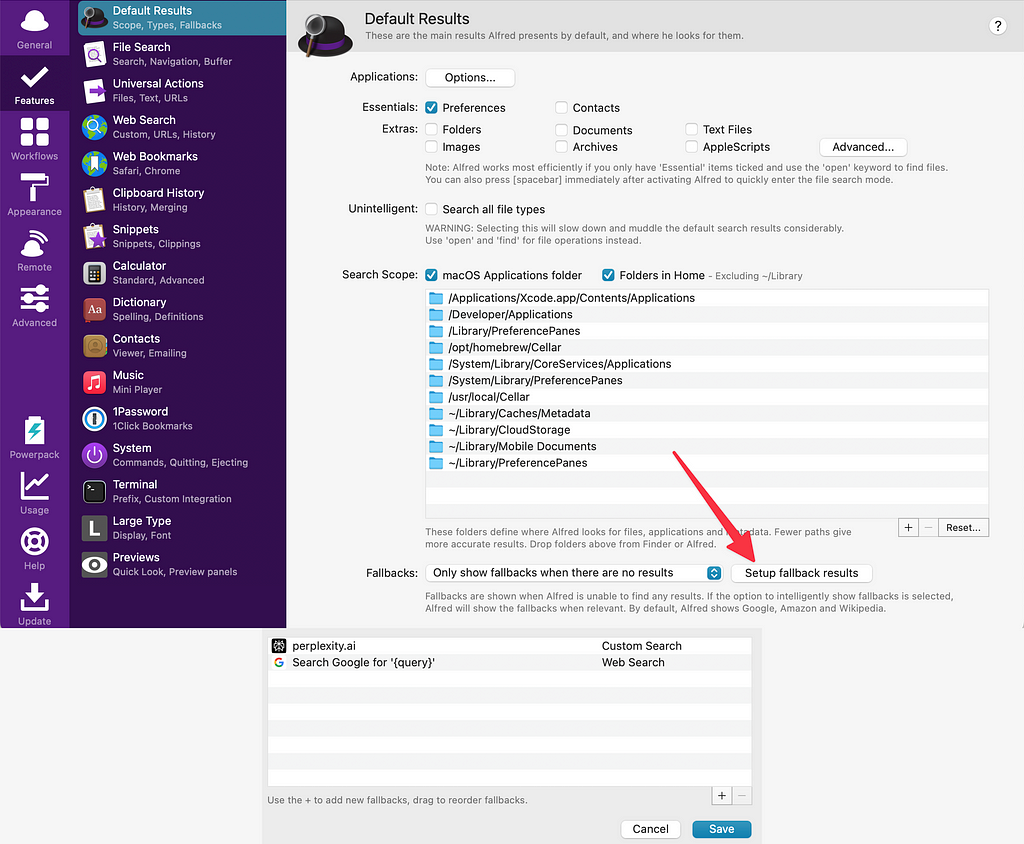
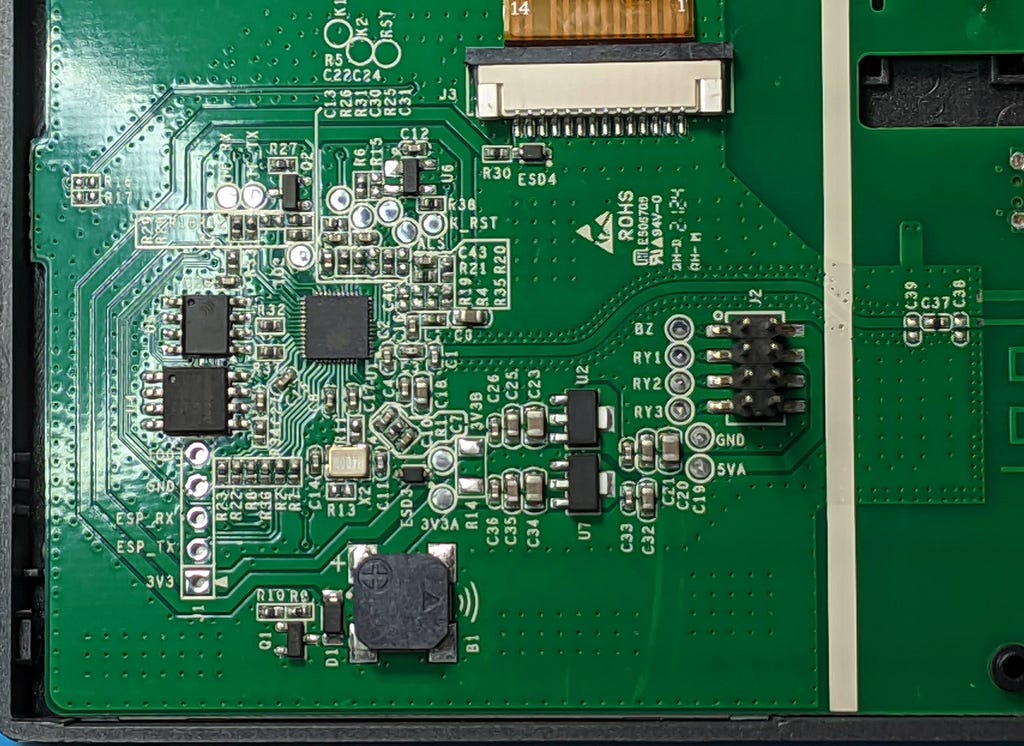
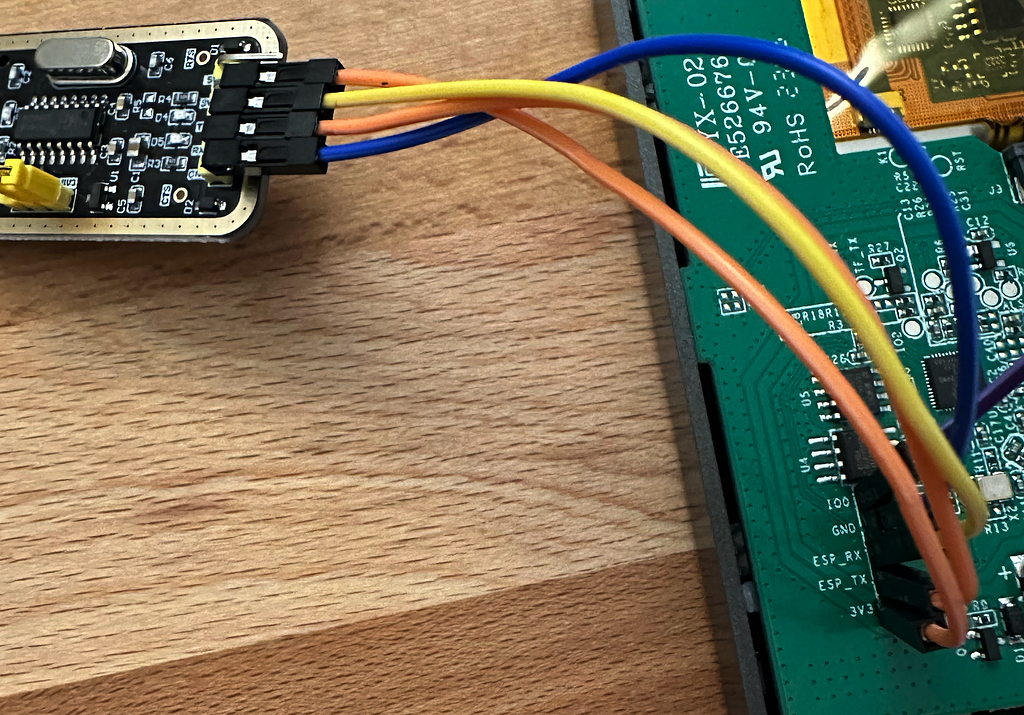
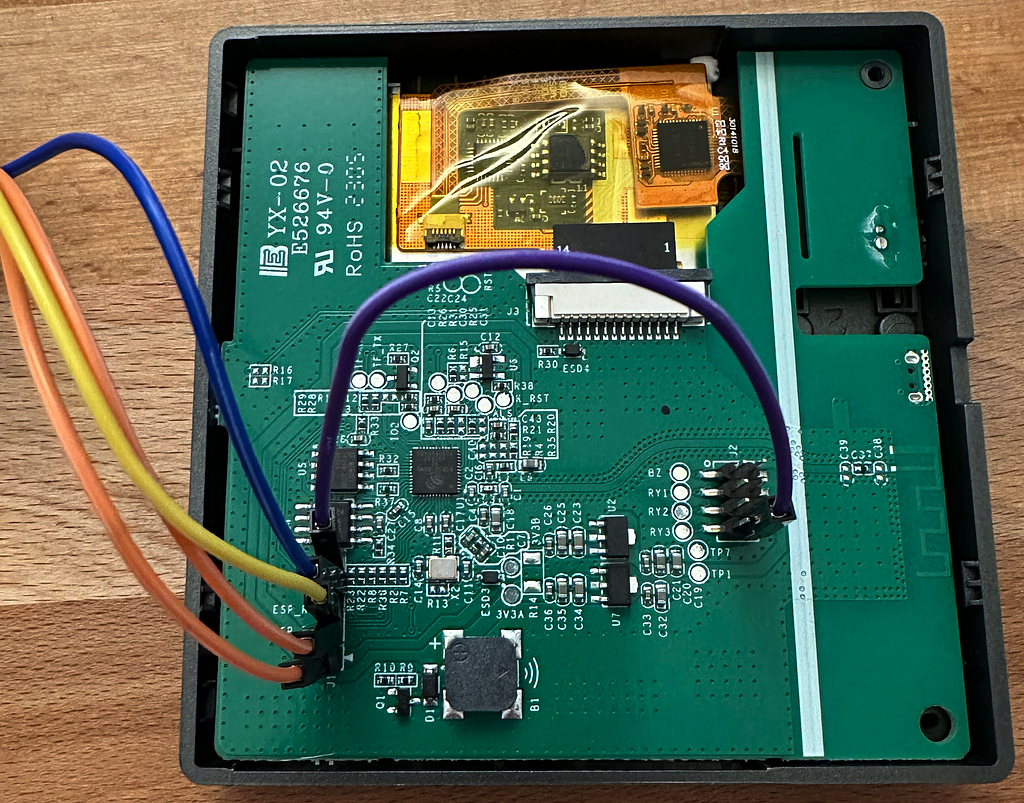
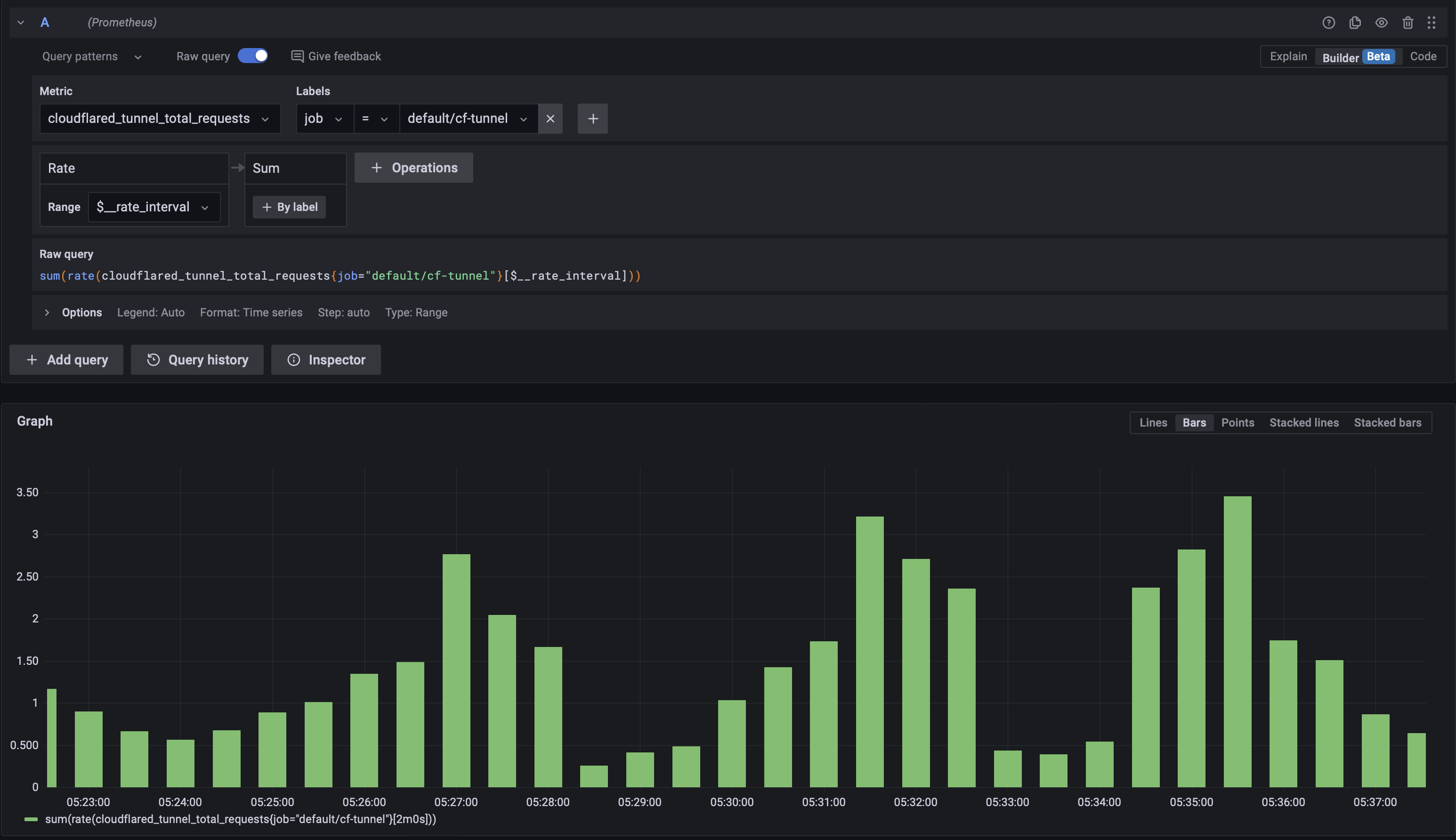
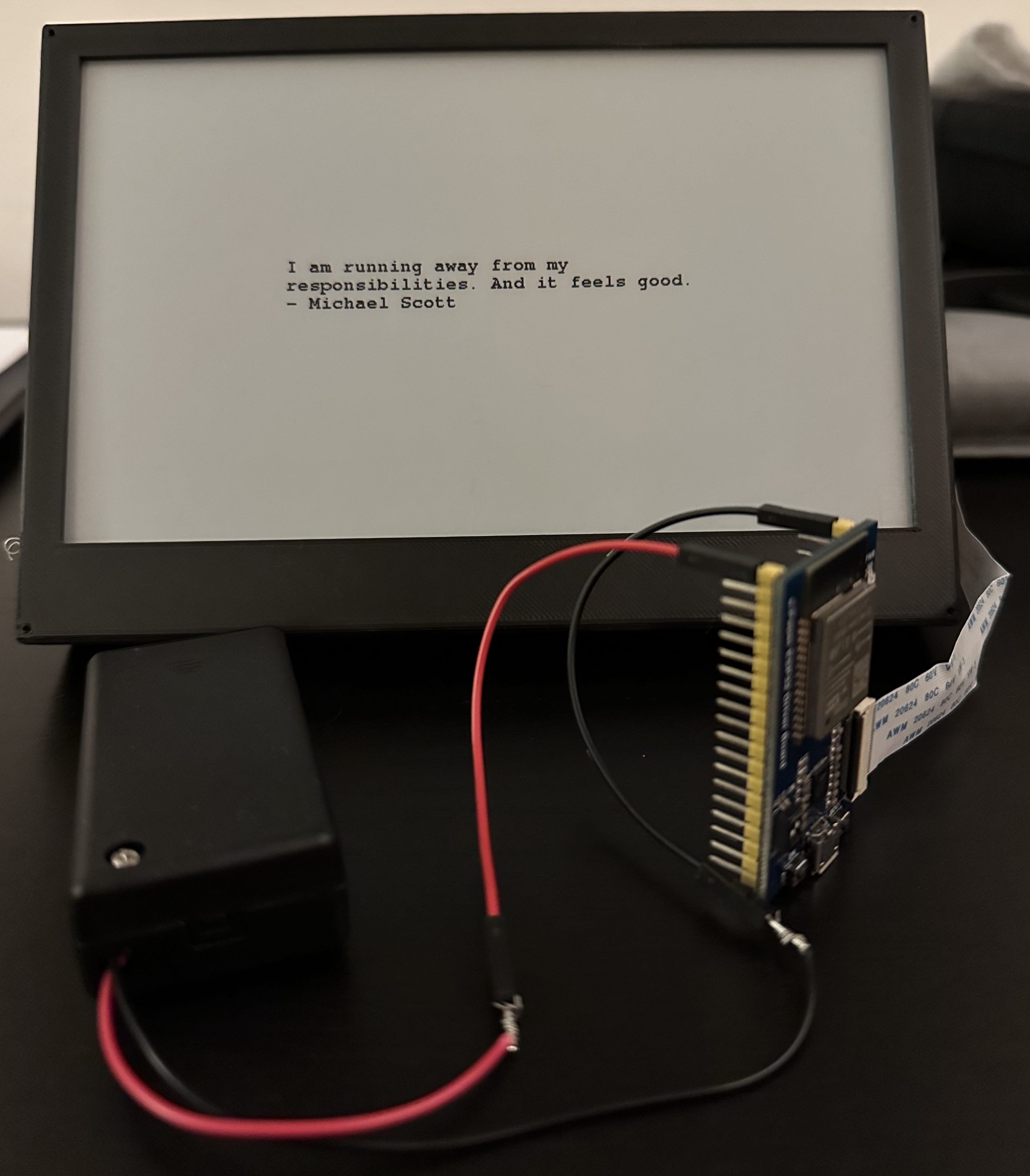
<?xml version="1.0" encoding="utf-8"?><feed xmlns="http://www.w3.org/2005/Atom" ><generator uri="https://jekyllrb.com/" version="4.4.1">Jekyll</generator><link href="https://ilayk.com/feed.xml" rel="self" type="application/atom+xml" /><link href="https://ilayk.com/" rel="alternate" type="text/html" /><updated>2025-12-26T10:58:26+00:00</updated><id>https://ilayk.com/feed.xml</id><title type="html">it’s like awesome you know</title><author><name>{&quot;email&quot; =&gt; &quot;hello@ilayk.com&quot;}</name><email>hello@ilayk.com</email></author><entry><title type="html">Music Assistant and Home Assistant: Get config_entry_id</title><link href="https://ilayk.com/2025/03/01/music-assistant-and-home-assistant-get-config-entry-id.html" rel="alternate" type="text/html" title="Music Assistant and Home Assistant: Get config_entry_id" /><published>2025-03-01T00:00:00+00:00</published><updated>2025-03-01T00:00:00+00:00</updated><id>https://ilayk.com/2025/03/01/music-assistant-and-home-assistant-get-config-entry-id</id><content type="html" xml:base="https://ilayk.com/2025/03/01/music-assistant-and-home-assistant-get-config-entry-id.html"><![CDATA[<figure><img alt="" src="https://cdn-images-1.medium.com/max/512/1*4EZWHB0uTc9OXX_KAciSug.png" /></figure><p>I’m running <a href="https://www.music-assistant.io">Music Assistant</a> and <a href="https://www.home-assistant.io">Home Assistant</a> to manage my smart home, automations and music playback at home. Both systems integrate nicely with each other through various integrations. I can press a button on a light switch and make Home Assistant turn on a smart outlet, some lights and play music from Spotify, Apple Music, YouTube Music, or even files from my local file system on my Sonos speakers. That’s great!</p><p>I just always had a hard time finding the right URI or address to include in my automations to trigger the right album or playlist to be sent from Home Assistant to Music Assistant.</p><p><a href="https://www.music-assistant.io/faq/how-to/#get-the-uri">Here is some more information about how to get the URI</a>.</p><h4>Search Music Assistant from Home Assistant</h4><p>When you open the <em>Developer Tools </em>=&gt;<em> Actions </em>menu in Home Assistant, you can select an action called Music Assistant: Search Music Assistant. You can pre-fill this with some information, for example:</p><pre>action: music_assistant.search<br>data:<br>  name: Down Under<br>  artist: Men at Work<br>  limit: 25<br>  library_only: true</pre><p>It’ll then complain that the config_entry_id is missing. This information was a bit hard to find.</p><h4>Get Music Assistant config_entry_id</h4><p>In Home Assistant, open the <em>Music Assistant</em> integration, click on the <em>devices</em> or <em>entities</em> link, and then you’ll find the config_entry_id in your browser’s address bar. You can then plug the config ID into your Music Assistant Developer Actions to interact with Music Assistant, like so:</p><pre>action: music_assistant.search<br>data:<br>  config_entry_id: 01JEfoobarbaz<br>  name: Down Under<br>  artist: Men at Work<br>  limit: 25<br>  library_only: true</pre><figure><img alt="" src="https://cdn-images-1.medium.com/max/1024/1*KfoZQDYitC0nVdhQ8ze2MQ.png" /><figcaption>Music Assistant Integration</figcaption></figure><figure><img alt="" src="https://cdn-images-1.medium.com/max/790/1*Q4Qf6zc4AaZ-BCTWbizgdg.png" /><figcaption>config_entry = config_entry_id</figcaption></figure><figure><img alt="" src="https://cdn-images-1.medium.com/max/1024/1*HMZ146RwUFzojP-FdAYi-Q.png" /><figcaption>Use the Search Action in Home Assistant</figcaption></figure><img src="https://medium.com/_/stat?event=post.clientViewed&referrerSource=full_rss&postId=d37edaccfff8" width="1" height="1" alt="">]]></content><author><name>{&quot;email&quot; =&gt; &quot;hello@ilayk.com&quot;}</name><email>hello@ilayk.com</email></author><summary type="html"><![CDATA[I’m running Music Assistant and Home Assistant to manage my smart home, automations and music playback at home. Both systems integrate nicely with each other through various integrations. I can press a button on a light switch and make Home Assistant turn on a smart outlet, some lights and play music from Spotify, Apple Music, YouTube Music, or even files from my local file system on my Sonos speakers. That’s great!I just always had a hard time finding the right URI or address to include in my automations to trigger the right album or playlist to be sent from Home Assistant to Music Assistant.Here is some more information about how to get the URI.Search Music Assistant from Home AssistantWhen you open the Developer Tools =&gt; Actions menu in Home Assistant, you can select an action called Music Assistant: Search Music Assistant. You can pre-fill this with some information, for example:action: music_assistant.searchdata: name: Down Under artist: Men at Work limit: 25 library_only: trueIt’ll then complain that the config_entry_id is missing. This information was a bit hard to find.Get Music Assistant config_entry_idIn Home Assistant, open the Music Assistant integration, click on the devices or entities link, and then you’ll find the config_entry_id in your browser’s address bar. You can then plug the config ID into your Music Assistant Developer Actions to interact with Music Assistant, like so:action: music_assistant.searchdata: config_entry_id: 01JEfoobarbaz name: Down Under artist: Men at Work limit: 25 library_only: trueMusic Assistant Integrationconfig_entry = config_entry_idUse the Search Action in Home Assistant]]></summary></entry><entry><title type="html">Use Docker (compose) With Different Network Interfaces / VLANs</title><link href="https://ilayk.com/2025/01/03/use-docker-compose-with-different-network-interfaces-vlans.html" rel="alternate" type="text/html" title="Use Docker (compose) With Different Network Interfaces / VLANs" /><published>2025-01-03T00:00:00+00:00</published><updated>2025-01-03T00:00:00+00:00</updated><id>https://ilayk.com/2025/01/03/use-docker-compose-with-different-network-interfaces-vlans</id><content type="html" xml:base="https://ilayk.com/2025/01/03/use-docker-compose-with-different-network-interfaces-vlans.html"><![CDATA[<p>I have multiple network interfaces configured on my Linux host system to route between multiple VLANs and use different internet providers. I organize most of my stuff with Docker and Docker Compose, and for some of these services and containers, I want to use a different network route to access the internet. One example would be to balance outgoing traffic between multiple providers or have a download-heavy container use a network with a faster or less used connection.</p><p>To achieve this, it’s necessary to create a new Docker bridge network and connect containers to it. Unfortunately, it’s also required to adjust the routing table on the host system to make everything work together, but it’s relatively simple.</p><h3>Docker Setup: compose.yaml</h3><p>Here’s an example compose.yaml file. I have defined two alpine test containers that both run wget to <a href="https://icanhazip.com/">icanhazip.com</a> to print out the IP address they are using for outgoing traffic to make it more clear.</p><p>The networks part at the end of the file is important for creating the new Docker network. This network and the chosen IP address space are just for the Docker containers. For the first Alpine service, you can see that I configured vlan3_network as the network to use for this container.</p><pre>services:<br>  alpine:<br>    image: alpine<br>    command: &quot;wget -qO- https://icanhazip.com&quot;<br>    networks:<br>      - vlan3_network<br><br>  alpine2:<br>    image: alpine<br>    command: &quot;wget -qO- https://icanhazip.com&quot;<br><br>networks:<br>  vlan3_network:<br>    driver: bridge<br>    driver_opts:<br>      com.docker.network.bridge.name: docker_vlan3<br>    ipam:<br>      config:<br>        - subnet: 192.168.100.0/24</pre><h3>Linux Routing Configuration</h3><pre>echo &quot;101 vlan3_table&quot; | tee -a /etc/iproute2/rt_tables<br>ip rule add from 192.168.100.0/24 lookup vlan3_table<br>ip route add default via 192.168.3.1 dev enp2s0.vlan3 table vlan3_table</pre><p>Essentially, we’re creating a new routing table with the name vlan3_table and adding a new default route so that all traffic from the subnet 192.168.100.0/24 goes through the host network interfaceenp2s0.vlan3.</p><h3>Test</h3><p>Now, when you run docker compose up, you should see the output from both containers, ideally displaying a different public IP address.</p><h3>Persist Configuration</h3><p>The ip commands from above are not saved when the system reboots. My Ubuntu installation is configured through systemd-networkd, so I’m using the following configuration to make the changes permanent:</p><pre>echo &quot;101 vlan3_table&quot; | tee -a /etc/iproute2/rt_tables</pre><pre># /etc/systemd/network/21-enp2s0.vlan3.netdev<br>[NetDev]<br>Name=enp2s0.vlan3<br>Kind=vlan<br><br>[VLAN]<br>Id=3</pre><pre># /etc/systemd/network/31-enp2s0.vlan3.network<br>[Match]<br>Name=enp2s0.vlan3<br><br>[Network]<br>DHCP=ipv4<br>LinkLocalAddressing=no<br>IPv6AcceptRouterAdvertisements=false<br>IPv6AcceptRA=no<br>IPv6SendRA=no<br><br>[RoutingPolicyRule]<br>From=192.168.100.0/24<br>Table=101<br><br>[Route]<br>Table=101<br>Destination=0.0.0.0/0<br>Gateway=192.168.3.1</pre><img src="https://medium.com/_/stat?event=post.clientViewed&referrerSource=full_rss&postId=8ed83e5a3dbe" width="1" height="1" alt="">]]></content><author><name>{&quot;email&quot; =&gt; &quot;hello@ilayk.com&quot;}</name><email>hello@ilayk.com</email></author><summary type="html"><![CDATA[I have multiple network interfaces configured on my Linux host system to route between multiple VLANs and use different internet providers. I organize most of my stuff with Docker and Docker Compose, and for some of these services and containers, I want to use a different network route to access the internet. One example would be to balance outgoing traffic between multiple providers or have a download-heavy container use a network with a faster or less used connection.To achieve this, it’s necessary to create a new Docker bridge network and connect containers to it. Unfortunately, it’s also required to adjust the routing table on the host system to make everything work together, but it’s relatively simple.Docker Setup: compose.yamlHere’s an example compose.yaml file. I have defined two alpine test containers that both run wget to icanhazip.com to print out the IP address they are using for outgoing traffic to make it more clear.The networks part at the end of the file is important for creating the new Docker network. This network and the chosen IP address space are just for the Docker containers. For the first Alpine service, you can see that I configured vlan3_network as the network to use for this container.services: alpine: image: alpine command: &quot;wget -qO- https://icanhazip.com&quot; networks: - vlan3_network alpine2: image: alpine command: &quot;wget -qO- https://icanhazip.com&quot;networks: vlan3_network: driver: bridge driver_opts: com.docker.network.bridge.name: docker_vlan3 ipam: config: - subnet: 192.168.100.0/24Linux Routing Configurationecho &quot;101 vlan3_table&quot; | tee -a /etc/iproute2/rt_tablesip rule add from 192.168.100.0/24 lookup vlan3_tableip route add default via 192.168.3.1 dev enp2s0.vlan3 table vlan3_tableEssentially, we’re creating a new routing table with the name vlan3_table and adding a new default route so that all traffic from the subnet 192.168.100.0/24 goes through the host network interfaceenp2s0.vlan3.TestNow, when you run docker compose up, you should see the output from both containers, ideally displaying a different public IP address.Persist ConfigurationThe ip commands from above are not saved when the system reboots. My Ubuntu installation is configured through systemd-networkd, so I’m using the following configuration to make the changes permanent:echo &quot;101 vlan3_table&quot; | tee -a /etc/iproute2/rt_tables# /etc/systemd/network/21-enp2s0.vlan3.netdev[NetDev]Name=enp2s0.vlan3Kind=vlan[VLAN]Id=3# /etc/systemd/network/31-enp2s0.vlan3.network[Match]Name=enp2s0.vlan3[Network]DHCP=ipv4LinkLocalAddressing=noIPv6AcceptRouterAdvertisements=falseIPv6AcceptRA=noIPv6SendRA=no[RoutingPolicyRule]From=192.168.100.0/24Table=101[Route]Table=101Destination=0.0.0.0/0Gateway=192.168.3.1]]></summary></entry><entry><title type="html">ChatGPT Search in Alfred</title><link href="https://ilayk.com/2025/01/02/chatgpt-search-in-alfred.html" rel="alternate" type="text/html" title="ChatGPT Search in Alfred" /><published>2025-01-02T00:00:00+00:00</published><updated>2025-01-02T00:00:00+00:00</updated><id>https://ilayk.com/2025/01/02/chatgpt-search-in-alfred</id><content type="html" xml:base="https://ilayk.com/2025/01/02/chatgpt-search-in-alfred.html"><![CDATA[<h3>ChatGPT Search in Alfred</h3><p>After writing about how to use <a href="https://medium.com/@_jonas/perplexity-ai-as-the-default-fallback-search-in-alfred-271223ad0289">perplexity.ai</a> as the search engine of choice in <a href="https://www.alfredapp.com/">Alfred.app</a>, I’m describing the same for ChatGPT now. I also switched over to ChatGPT for searching instead of perplexity since it surfaces the sources in a more useful way for me, and it also feels like the results are better. YMMV.</p><p>When you copy the following URL, open it in your browsers address bar and have Alfred installed, it should automatically open Alfred and add ChatGPT as a custom search. I called it <em>oa</em> for OpenAI, but since I’m using it also as a default search or fallback, the shortcut doesn’t really matter.</p><pre>alfred://customsearch/chatgpt%20search/oa/utf8/nospace/https://chatgpt.com/?q=%7Bquery%7D&amp;hints=search</pre><p>Note: The URL how to start a chat with search enabled by default is this one:</p><pre>https://chatgpt.com/?q={query}&amp;hints=search</pre><p>Initially, I wanted to always start the search in a temporary chat, but this doesn’t work at the moment. Apparently this should be the URL:</p><pre>https://chatgpt.com/?q={query}&amp;hints=search&amp;temporary-chat=true</pre><p>After the custom search is installed, open the Alfred Preferences, go to <strong><em>Features</em></strong> in the sidebar =&gt; <strong><em>Default Results</em></strong>, and on the bottom of the page, <strong><em>Setup fallback results</em></strong></p><figure><img alt="" src="https://cdn-images-1.medium.com/max/1024/1*lFx5tOvJWLDhZQaffzP0yw.png" /></figure><img src="https://medium.com/_/stat?event=post.clientViewed&referrerSource=full_rss&postId=f98ac9a50869" width="1" height="1" alt="">]]></content><author><name>{&quot;email&quot; =&gt; &quot;hello@ilayk.com&quot;}</name><email>hello@ilayk.com</email></author><summary type="html"><![CDATA[ChatGPT Search in AlfredAfter writing about how to use perplexity.ai as the search engine of choice in Alfred.app, I’m describing the same for ChatGPT now. I also switched over to ChatGPT for searching instead of perplexity since it surfaces the sources in a more useful way for me, and it also feels like the results are better. YMMV.When you copy the following URL, open it in your browsers address bar and have Alfred installed, it should automatically open Alfred and add ChatGPT as a custom search. I called it oa for OpenAI, but since I’m using it also as a default search or fallback, the shortcut doesn’t really matter.alfred://customsearch/chatgpt%20search/oa/utf8/nospace/https://chatgpt.com/?q=%7Bquery%7D&amp;hints=searchNote: The URL how to start a chat with search enabled by default is this one:https://chatgpt.com/?q={query}&amp;hints=searchInitially, I wanted to always start the search in a temporary chat, but this doesn’t work at the moment. Apparently this should be the URL:https://chatgpt.com/?q={query}&amp;hints=search&amp;temporary-chat=trueAfter the custom search is installed, open the Alfred Preferences, go to Features in the sidebar =&gt; Default Results, and on the bottom of the page, Setup fallback results]]></summary></entry><entry><title type="html">perplexity.ai as the Default (Fallback) Search in Alfred</title><link href="https://ilayk.com/2024/05/30/perplexity-ai-as-the-default-fallback-search-in-alfred.html" rel="alternate" type="text/html" title="perplexity.ai as the Default (Fallback) Search in Alfred" /><published>2024-05-30T00:00:00+00:00</published><updated>2024-05-30T00:00:00+00:00</updated><id>https://ilayk.com/2024/05/30/perplexity-ai-as-the-default-fallback-search-in-alfred</id><content type="html" xml:base="https://ilayk.com/2024/05/30/perplexity-ai-as-the-default-fallback-search-in-alfred.html"><![CDATA[<p>I want to explore <a href="https://www.perplexity.ai/">perplexity.ai</a> as a replacement for Google search, but I always manage to not use it because Google is set up as the default everywhere on my system. On macOS, I’m using Safari, which unfortunately doesn’t provide a way to use Perplexity as the default search engine, and I don’t want to resort back to tools such as <a href="https://apps.apple.com/de/app/xsearch-for-safari/id1579902068?l=en-GB">xSearch</a> to get this functionality.</p><figure><img alt="" src="https://cdn-images-1.medium.com/max/270/1*JdYkEnRTI01pwvwv-q2W7Q.png" /></figure><p>On macOS, I usually do everything with <a href="https://www.alfredapp.com/">Alfred</a>, and the default <em>fallback</em> search engine in Alfred is also set to Google. I’ve set up a custom search in Alfred for perplexity.ai a long time ago, but since Google is the <em>default</em> fallback when Alfred doesn’t resolve to a file or application, I end up on Google and barely remember to use my custom perplexity.ai shortcut.</p><p>It didn’t occur to me until now that it’s totally possible to change the default fallback search to the custom perplexity web search I’ve set up such a long time ago!</p><h3>Add perplexity.ai as a Custom Web Search in Alfred</h3><p>When you copy and paste the following block into your browsers URL bar, it should open Alfred and add the custom search.</p><pre>alfred://customsearch/perplexity.ai/p/utf8/nospace/https://www.perplexity.ai/search?q=%7Bquery%7D</pre><h3>Change the Fallback Results in Alfred</h3><ol><li>On the Alfred <em>Defaults Results</em> settings page, select <em>Setup fallback results</em></li><li>Find your custom perplexity web search in the dropdown and move it to the top</li><li>Profit</li></ol><figure><img alt="Alfred settings pointing out the default fallback settings" src="https://cdn-images-1.medium.com/max/1024/1*_TmDckLP0Yi_eghf6ugWxg.png" /></figure><img src="https://medium.com/_/stat?event=post.clientViewed&referrerSource=full_rss&postId=271223ad0289" width="1" height="1" alt="">]]></content><author><name>{&quot;email&quot; =&gt; &quot;hello@ilayk.com&quot;}</name><email>hello@ilayk.com</email></author><summary type="html"><![CDATA[I want to explore perplexity.ai as a replacement for Google search, but I always manage to not use it because Google is set up as the default everywhere on my system. On macOS, I’m using Safari, which unfortunately doesn’t provide a way to use Perplexity as the default search engine, and I don’t want to resort back to tools such as xSearch to get this functionality.On macOS, I usually do everything with Alfred, and the default fallback search engine in Alfred is also set to Google. I’ve set up a custom search in Alfred for perplexity.ai a long time ago, but since Google is the default fallback when Alfred doesn’t resolve to a file or application, I end up on Google and barely remember to use my custom perplexity.ai shortcut.It didn’t occur to me until now that it’s totally possible to change the default fallback search to the custom perplexity web search I’ve set up such a long time ago!Add perplexity.ai as a Custom Web Search in AlfredWhen you copy and paste the following block into your browsers URL bar, it should open Alfred and add the custom search.alfred://customsearch/perplexity.ai/p/utf8/nospace/https://www.perplexity.ai/search?q=%7Bquery%7DChange the Fallback Results in AlfredOn the Alfred Defaults Results settings page, select Setup fallback resultsFind your custom perplexity web search in the dropdown and move it to the topProfit]]></summary></entry><entry><title type="html">Flash ESPHome on the Sonoff NSPanel</title><link href="https://ilayk.com/2024/04/07/flash-esphome-on-the-sonoff-nspanel.html" rel="alternate" type="text/html" title="Flash ESPHome on the Sonoff NSPanel" /><published>2024-04-07T00:00:00+00:00</published><updated>2024-04-07T00:00:00+00:00</updated><id>https://ilayk.com/2024/04/07/flash-esphome-on-the-sonoff-nspanel</id><content type="html" xml:base="https://ilayk.com/2024/04/07/flash-esphome-on-the-sonoff-nspanel.html"><![CDATA[<p>I got the <a href="https://sonoff.tech/product/central-control-panel/nspanel/">Sonoff NSPanel</a> (EU Version) to connect it to my home-assistant instance by flashing with it <a href="https://esphome.io/index.html">esphome</a>. There are a few guides and video tutorials out there to get started. I’d recommend going to this <a href="https://github.com/Blackymas/NSPanel_HA_Blueprint/tree/main">GitHub project</a>.</p><p>However, I had some issues flashing ESPHome onto this device since you can’t just connect it using a USB adapter. I’m trying to document how I was finally able to flash ESPhome onto the NSPanel. For everything else, please just use the existing guide(s).</p><p><strong>What You Need:</strong></p><ul><li><a href="https://esphome.io/guides/physical_device_connection#usb-serial-adapter">usb to serial adapter</a>, or UART adapter to connect the panel through USB</li><li><a href="https://esphome.io/guides/physical_device_connection#jumper-wires">jumper wires</a>, well, to actually connect your computer and the panel</li></ul><p><strong>How to Wire Everything Together:</strong></p><p>This is actually the whole reason for this blog post, everything I found out there didn’t work for me. So, this is what worked for me and my device.</p><p>Here’s a pinout of the NSPanel to get a better understanding:</p><figure><img alt="" src="https://cdn-images-1.medium.com/max/1024/1*ZXOWMd_hMZXNa_bPNKe2iQ.jpeg" /></figure><p>Connect The wires between the UART Adapter and the NSPanel like this</p><ul><li>put the UART Adapter in 3V mode</li></ul><p>USB adapter to NSPanel:</p><ul><li>3v to 3v</li><li>gnd to gnd</li><li>RX to TX</li><li>TX to RX</li></ul><p>Note that you need to <strong>cross RX and TX</strong>! <a href="https://sequr.be/blog/2023/01/flashing-nspanel-with-tasmota-and-nspanel-lovelace-ui/)">This article</a> helped me with that.</p><figure><img alt="uart adapter wiring" src="https://cdn-images-1.medium.com/max/1024/1*ryywBMDjpnHGzm6sQ1DzDA.png" /></figure><p>On the NSPanel itself, connect:</p><ul><li>IO0 to gnd on the bottom gnd pin on the right side</li></ul><figure><img alt="nspanel wiring" src="https://cdn-images-1.medium.com/max/1024/1*8DhxHjbT8NCXdR-PwXDlfQ.png" /></figure><p>Now you should be able to connect the usb adapter to your computer and use the <a href="https://web.esphome.io/">web based esphome flasher</a>.</p><img src="https://medium.com/_/stat?event=post.clientViewed&referrerSource=full_rss&postId=4e64270f0751" width="1" height="1" alt="">]]></content><author><name>{&quot;email&quot; =&gt; &quot;hello@ilayk.com&quot;}</name><email>hello@ilayk.com</email></author><summary type="html"><![CDATA[I got the Sonoff NSPanel (EU Version) to connect it to my home-assistant instance by flashing with it esphome. There are a few guides and video tutorials out there to get started. I’d recommend going to this GitHub project.However, I had some issues flashing ESPHome onto this device since you can’t just connect it using a USB adapter. I’m trying to document how I was finally able to flash ESPhome onto the NSPanel. For everything else, please just use the existing guide(s).What You Need:usb to serial adapter, or UART adapter to connect the panel through USBjumper wires, well, to actually connect your computer and the panelHow to Wire Everything Together:This is actually the whole reason for this blog post, everything I found out there didn’t work for me. So, this is what worked for me and my device.Here’s a pinout of the NSPanel to get a better understanding:Connect The wires between the UART Adapter and the NSPanel like thisput the UART Adapter in 3V modeUSB adapter to NSPanel:3v to 3vgnd to gndRX to TXTX to RXNote that you need to cross RX and TX! This article helped me with that.On the NSPanel itself, connect:IO0 to gnd on the bottom gnd pin on the right sideNow you should be able to connect the usb adapter to your computer and use the web based esphome flasher.]]></summary></entry><entry><title type="html">Amazon SES and Mastodon in Docker</title><link href="https://ilayk.com/2023/12/31/amazon-ses-and-mastodon-in-docker.html" rel="alternate" type="text/html" title="Amazon SES and Mastodon in Docker" /><published>2023-12-31T00:00:00+00:00</published><updated>2023-12-31T00:00:00+00:00</updated><id>https://ilayk.com/2023/12/31/amazon-ses-and-mastodon-in-docker</id><content type="html" xml:base="https://ilayk.com/2023/12/31/amazon-ses-and-mastodon-in-docker.html"><![CDATA[<figure><img alt="" src="https://cdn-images-1.medium.com/max/403/1*PhxZlbDoiTKRw0CASVK7Fw.png" /></figure><p>I’ve been playing around with hosting my own <a href="https://docs.joinmastodon.org/user/run-your-own/">Mastodon instance</a> lately. If I continue this journey, I might write more about it. However, this post focuses solely on setting up email notifications between <a href="https://aws.amazon.com/ses/">Amazon SES</a> and Mastodon running within a Docker environment.</p><p>I had some trouble sending out emails successfully and it took a while to figure things out. With this post I just want to add to the confusion by providing my working configuration.</p><p>I have the following SMTP_ parameter in my .env file:</p><pre>SMTP_AUTH_METHOD=plain<br>SMTP_ENABLE_STARTTLS=never<br>SMTP_ENABLE_STARTTLS_AUTO=false<br>SMTP_FROM_ADDRESS=&quot;Mastodon &lt;notifications@example.com&gt;&quot;<br>SMTP_LOGIN=username<br>SMTP_PASSWORD=password<br>SMTP_OPENSSL_VERIFY_MODE=none<br>SMTP_PORT=465<br>SMTP_SERVER=email-smtp.us-east-1.amazonaws.com<br>SMTP_TLS=true</pre><img src="https://medium.com/_/stat?event=post.clientViewed&referrerSource=full_rss&postId=cbcb1f88b394" width="1" height="1" alt="">]]></content><author><name>{&quot;email&quot; =&gt; &quot;hello@ilayk.com&quot;}</name><email>hello@ilayk.com</email></author><summary type="html"><![CDATA[I’ve been playing around with hosting my own Mastodon instance lately. If I continue this journey, I might write more about it. However, this post focuses solely on setting up email notifications between Amazon SES and Mastodon running within a Docker environment.I had some trouble sending out emails successfully and it took a while to figure things out. With this post I just want to add to the confusion by providing my working configuration.I have the following SMTP_ parameter in my .env file:SMTP_AUTH_METHOD=plainSMTP_ENABLE_STARTTLS=neverSMTP_ENABLE_STARTTLS_AUTO=falseSMTP_FROM_ADDRESS=&quot;Mastodon &lt;notifications@example.com&gt;&quot;SMTP_LOGIN=usernameSMTP_PASSWORD=passwordSMTP_OPENSSL_VERIFY_MODE=noneSMTP_PORT=465SMTP_SERVER=email-smtp.us-east-1.amazonaws.comSMTP_TLS=true]]></summary></entry><entry><title type="html">Quick Bookmarks / Clippings in Obsidian</title><link href="https://ilayk.com/2023/05/01/quick-bookmarks-clippings-in-obsidian.html" rel="alternate" type="text/html" title="Quick Bookmarks / Clippings in Obsidian" /><published>2023-05-01T00:00:00+00:00</published><updated>2023-05-01T00:00:00+00:00</updated><id>https://ilayk.com/2023/05/01/quick-bookmarks-clippings-in-obsidian</id><content type="html" xml:base="https://ilayk.com/2023/05/01/quick-bookmarks-clippings-in-obsidian.html"><![CDATA[<h3>Save Quick Bookmarks / Clippings in Obsidian</h3><p>I was looking for a quick and easy way to save links from the page I’m currently on and save them to a single file in Obsidian. Ideally with some tags, so I can find them later on. While I like the idea of saving the whole web page as well, export it as a PDF or PNG so it can be read when I’m offline or the page is gone. While this sounds good, I figured that an offline archive of a website or project probably doesn’t help me ultimately, since, well, it’s offline and I rather want to use things which are still updated and maintained. Just my two cents on this.</p><p>So, instead of a fully featured bookmarking sync service with tons of features and offline reading capabilities, I decided that I just need the url, website title and an option to add hashtags at the end of the text to find it later on.</p><p>Let’s save all of this in a single big file in Obsidian. Ultimately, it’s just a plain text markdown file. I can move it around, modify it with other utilities and go about my day.</p><p>Long story short, it just requires this bookmarklet:</p><iframe src="" width="0" height="0" frameborder="0" scrolling="no"><a href="https://medium.com/media/ec7ee81b216a4d43a56836b3675d11e5/href">https://medium.com/media/ec7ee81b216a4d43a56836b3675d11e5/href</a></iframe><p>You might want to use something like this <a href="https://caiorss.github.io/bookmarklet-maker/">bookmarklet maker</a> to make it usable as a bookmark in your browser’s bookmark bar.</p><p>It’ll take the website title, give you an option to modify it, let you add some tags, and put it into your Obsidian vault pointing to a specific note. It’s just appending the contents to the file if it exists already.</p><p>You need to update lines two and three with your vault’s name and the name of the note you want to create/use for it.</p><p>The bookmarklet also works in Safari on iOS, no need for an additional shortcut.</p><img src="https://medium.com/_/stat?event=post.clientViewed&referrerSource=full_rss&postId=3050d375697a" width="1" height="1" alt="">]]></content><author><name>{&quot;email&quot; =&gt; &quot;hello@ilayk.com&quot;}</name><email>hello@ilayk.com</email></author><summary type="html"><![CDATA[Save Quick Bookmarks / Clippings in ObsidianI was looking for a quick and easy way to save links from the page I’m currently on and save them to a single file in Obsidian. Ideally with some tags, so I can find them later on. While I like the idea of saving the whole web page as well, export it as a PDF or PNG so it can be read when I’m offline or the page is gone. While this sounds good, I figured that an offline archive of a website or project probably doesn’t help me ultimately, since, well, it’s offline and I rather want to use things which are still updated and maintained. Just my two cents on this.So, instead of a fully featured bookmarking sync service with tons of features and offline reading capabilities, I decided that I just need the url, website title and an option to add hashtags at the end of the text to find it later on.Let’s save all of this in a single big file in Obsidian. Ultimately, it’s just a plain text markdown file. I can move it around, modify it with other utilities and go about my day.Long story short, it just requires this bookmarklet:https://medium.com/media/ec7ee81b216a4d43a56836b3675d11e5/hrefYou might want to use something like this bookmarklet maker to make it usable as a bookmark in your browser’s bookmark bar.It’ll take the website title, give you an option to modify it, let you add some tags, and put it into your Obsidian vault pointing to a specific note. It’s just appending the contents to the file if it exists already.You need to update lines two and three with your vault’s name and the name of the note you want to create/use for it.The bookmarklet also works in Safari on iOS, no need for an additional shortcut.]]></summary></entry><entry><title type="html">Keyboard Maestro- Lowercase File(s)</title><link href="https://ilayk.com/2023/04/10/keyboard-maestro-lowercase-file-s.html" rel="alternate" type="text/html" title="Keyboard Maestro- Lowercase File(s)" /><published>2023-04-10T00:00:00+00:00</published><updated>2023-04-10T00:00:00+00:00</updated><id>https://ilayk.com/2023/04/10/keyboard-maestro-lowercase-file-s</id><content type="html" xml:base="https://ilayk.com/2023/04/10/keyboard-maestro-lowercase-file-s.html"><![CDATA[<h3>Keyboard Maestro: Lowercase File(s)</h3><p><a href="https://static.ilayk.com/lowercase_filename.kmmacros">Here’s a short Keyboard Maestro Macro</a> which allows you to select file(s) in macOS Finder and rename them to lowercased filenames. There’s not much else to it otherwise. I configured it as a selection within the Keyboard Maestro Menu Bar icon, or to use it via the global trigger.</p><figure><img alt="" src="https://cdn-images-1.medium.com/proxy/1*GuJIgEg6bdZjlGDUv4wpFw.gif" /></figure><img src="https://medium.com/_/stat?event=post.clientViewed&referrerSource=full_rss&postId=2085075cdf5d" width="1" height="1" alt="">]]></content><author><name>{&quot;email&quot; =&gt; &quot;hello@ilayk.com&quot;}</name><email>hello@ilayk.com</email></author><summary type="html"><![CDATA[Keyboard Maestro: Lowercase File(s)Here’s a short Keyboard Maestro Macro which allows you to select file(s) in macOS Finder and rename them to lowercased filenames. There’s not much else to it otherwise. I configured it as a selection within the Keyboard Maestro Menu Bar icon, or to use it via the global trigger.]]></summary></entry><entry><title type="html">Scrape Cloudflare Tunnel With Prometheus</title><link href="https://ilayk.com/2023/01/27/scrape-cloudflare-tunnel-with-prometheus.html" rel="alternate" type="text/html" title="Scrape Cloudflare Tunnel With Prometheus" /><published>2023-01-27T00:00:00+00:00</published><updated>2023-01-27T00:00:00+00:00</updated><id>https://ilayk.com/2023/01/27/scrape-cloudflare-tunnel-with-prometheus</id><content type="html" xml:base="https://ilayk.com/2023/01/27/scrape-cloudflare-tunnel-with-prometheus.html"><![CDATA[<h3>Scrape Cloudflare Tunnel With Prometheus &amp; Display Data in Grafana</h3><p><a href="https://medium.com/@_jonas/cloudflare-tunnel-as-a-kubernetes-deployment-ingress-9f943cd442a6">Now that I’m using Cloudflare Tunnel or cloudflared as my <em>ingress</em> for Kubernetes</a>, I wanted to gather some metrics from these pods, just to get an overview of what’s going on there. <a href="https://developers.cloudflare.com/cloudflare-one/connections/connect-apps/do-more-with-tunnels/grafana/">cloudflared exposes a metrics endpoint</a> which can be <em>scraped</em> by Prometheus and fed into Grafana to have some fancy graphs.</p><p><a href="https://grafana.com/docs/grafana/latest/getting-started/get-started-grafana-prometheus/">Here’s a guide on Grafana.com how the two tools work together</a>.</p><h4>Prometheus Stack</h4><p>I’m using the <a href="https://github.com/prometheus-community/helm-charts/tree/main/charts/kube-prometheus-stack">prometheus-community/kube-prometheus-stack</a> helm chart to deploy the initial monitoring stack to get Prometheus and Grafana up and running.</p><p>It’s best to follow the instructions on GitHub to install it, as they also have the latest information there on how to do this.</p><h4>PodMonitor for cloudflared</h4><p>When Prometheus and Grafana are up, you can configure a <em>PodMonitor</em> to tell Prometheus to scrape all the information from the individual cloudflared pods. To do so, I make the following assumptions about the Kubernetes environment:</p><ul><li>Namespace for Prometheus / Grafana: monitoring</li><li><em>release</em> label: monitoring</li><li>The cloudflared deployment has the following labels: app=cloudflared‌and release: monitoring</li><li>The <em>metrics port</em> name is set tohttp-metrics</li></ul><p><a href="https://man.ilayk.com/gist/kubernetes%20cloudflared%20deployment%20with%20podmonitor/">Here’s a snippet to configure the deployment, secret and PodMonitor</a>.</p><p>The snippet is a single YAML file which contains the cloudflared <em>Deployment</em>, the <em>Secret</em> to authenticate cloudflared, and the <em>PodMonitor</em> for Prometheus.</p><h4>Query Data in Grafana</h4><p>With the kube-prometheus-stack everything’s connected already, meaning data from Prometheus can be queried directly in Grafana. To do so, just get started in the <em>Explore</em> tab, select <em>Prometheus</em> as the data source and put in a query like so:</p><pre>sum (rate(cloudflared_tunnel_total_requests {job=&quot;default/cf-tunnel&quot;}[$__rate_interval]))</pre><p>There are also autocomplete suggestions depending on your environment, names for the deployment, pods etc.</p><p>With the rate() function you can calculate the average rate of requests in a given timeframe. <a href="https://prometheus.io/docs/prometheus/latest/querying/functions/">There are many more functions available</a> to make useful Dashboards.</p><figure><img alt="grafana dashboard to calculate the average rate for cloudflared requests" src="https://cdn-images-1.medium.com/proxy/1*SSMFff86vB__zvZVKdbjMQ.png" /><figcaption>using the rate() function to calculate requests</figcaption></figure><img src="https://medium.com/_/stat?event=post.clientViewed&referrerSource=full_rss&postId=bf706d928a7f" width="1" height="1" alt="">]]></content><author><name>{&quot;email&quot; =&gt; &quot;hello@ilayk.com&quot;}</name><email>hello@ilayk.com</email></author><summary type="html"><![CDATA[Scrape Cloudflare Tunnel With Prometheus &amp; Display Data in GrafanaNow that I’m using Cloudflare Tunnel or cloudflared as my ingress for Kubernetes, I wanted to gather some metrics from these pods, just to get an overview of what’s going on there. cloudflared exposes a metrics endpoint which can be scraped by Prometheus and fed into Grafana to have some fancy graphs.Here’s a guide on Grafana.com how the two tools work together.Prometheus StackI’m using the prometheus-community/kube-prometheus-stack helm chart to deploy the initial monitoring stack to get Prometheus and Grafana up and running.It’s best to follow the instructions on GitHub to install it, as they also have the latest information there on how to do this.PodMonitor for cloudflaredWhen Prometheus and Grafana are up, you can configure a PodMonitor to tell Prometheus to scrape all the information from the individual cloudflared pods. To do so, I make the following assumptions about the Kubernetes environment:Namespace for Prometheus / Grafana: monitoringrelease label: monitoringThe cloudflared deployment has the following labels: app=cloudflared‌and release: monitoringThe metrics port name is set tohttp-metricsHere’s a snippet to configure the deployment, secret and PodMonitor.The snippet is a single YAML file which contains the cloudflared Deployment, the Secret to authenticate cloudflared, and the PodMonitor for Prometheus.Query Data in GrafanaWith the kube-prometheus-stack everything’s connected already, meaning data from Prometheus can be queried directly in Grafana. To do so, just get started in the Explore tab, select Prometheus as the data source and put in a query like so:sum (rate(cloudflared_tunnel_total_requests {job=&quot;default/cf-tunnel&quot;}[$__rate_interval]))There are also autocomplete suggestions depending on your environment, names for the deployment, pods etc.With the rate() function you can calculate the average rate of requests in a given timeframe. There are many more functions available to make useful Dashboards.using the rate() function to calculate requests]]></summary></entry><entry><title type="html">Encouraging The Office Quotes on an e-Paper Display</title><link href="https://ilayk.com/2023/01/09/encouraging-the-office-quotes-on-an-e-paper-display.html" rel="alternate" type="text/html" title="Encouraging The Office Quotes on an e-Paper Display" /><published>2023-01-09T00:00:00+00:00</published><updated>2023-01-09T00:00:00+00:00</updated><id>https://ilayk.com/2023/01/09/encouraging-the-office-quotes-on-an-e-paper-display</id><content type="html" xml:base="https://ilayk.com/2023/01/09/encouraging-the-office-quotes-on-an-e-paper-display.html"><![CDATA[<h3>Encouraging The Office Quotes on an E Ink Display</h3><figure><img alt="E Ink display with ESP32" src="https://cdn-images-1.medium.com/proxy/1*ho7hD9X2NyWwuKWDkeTN0Q.jpeg" /></figure><p>I got an E Ink Display sometime last year and connected it to a Raspberry Pi Zero to use it as a low-power device to show the weather information for the day, perhaps some other stuff like calendar appointments. The list goes on.</p><p><a href="https://github.com/sevesalm/eInk-weather-display">There are a few projects out there to get started with this</a> whole thing.</p><p>I even got the <a href="https://github.com/PiSugar/PiSugar">PiSugar</a> to connect the Pi Zero with a battery. I managed to keep the Pi Zero powered with the battery for about 30 days on a schedule to turn it on once a day, fetch the information and update the display. After recharging it once, interest faded at some point and the thing ended up in a closet.</p><p>The initial plan was to power the E Ink display with an ESP32 Driver board for months or even years at a time without ever recharging. Since the ESP32 controllers can go in a deep-sleep mode and use basically no power at all. All this Arduino and ESP32 stuff failed on me since I couldn’t get the right C code working, that’s why I went for the whole Raspberry Pi route to get <em>something</em> running.</p><p>At some point during the holidays I finally got the stuff back out wanting to try all this again. Started the Arduino IDE and tried to gather all the C code I need to update the E Ink display with some basic information from a remote API.</p><p>Shouldn’t be too hard, right? Connect to Wi-Fi, fetch some JSON, place it in the right spot, update the display, and go back to sleep for a day.</p><p>Since weather information is boring, always wrong anyway, and there are way better methods out there to get a report, I decided to display a random quote from <em>The Office</em> to help me get through the day.</p><figure><img alt="News flash: You are not special. — Stanley Hudson" src="https://cdn-images-1.medium.com/max/840/1*Wj9fmjPAb8D15xR7exnw1g.png" /></figure><h4>Display and ESP32 Board</h4><p>For beginners like myself, I just got the E-Ink display and ESP32 driver board with the correct interfaces out of the box, so there’s no need to solder anything or do some other fancy stuff. This board can directly connect to the display and has USB for power and data. Below is what I got and used for this project, but there are tons of different brands and versions out there:</p><ul><li><a href="https://www.waveshare.com/e-Paper-ESP32-Driver-Board.htm">e-Paper ESP32 Driver Board</a></li><li><a href="https://www.waveshare.com/7.5inch-e-paper-hat.htm">800×480, 7.5inch E-Ink display</a></li></ul><h4>Set-Up</h4><p><a href="https://github.com/pew/somehow-i-manage">I gathered everything in this GitHub Repository</a>, the only thing required here is to install the <a href="https://www.arduino.cc/en/software/">Arduino IDE</a>, update the Wi-Fi credentials and perhaps change the display library to another one if you’ve got different hardware.</p><p>I’m using the <a href="https://github.com/ZinggJM/GxEPD2">GxEPD2 Display Library</a> which covers a lot of different e-Paper/E-Ink displays and has the model numbers listed (Good Display and Waveshare models seem to be the same). The code on my GitHub repo is set up to the use 800x480 7.5&quot; display I linked above.</p><p>tl;dr version:</p><ol><li>clone the <a href="https://github.com/pew/somehow-i-manage">GitHub repository</a></li><li>add it to your Arduino IDE</li><li>update the Wi-Fi credentials</li><li>(update the display configuration if you’re using another one)</li><li>upload it to your ESP32 through the Arduino IDE</li></ol><h4>Case and Battery</h4><p><a href="https://www.thingiverse.com/thing:3996613">This is the frame / case I got</a> from thingiverse to store everything and put it on the wall. You can then get yourself a battery holder with some jumper wires or solder this stuff on, or use the USB plug. <a href="https://www.of-things.de/battery-life-calculator.php">There’s a nice calculator available as well</a> to figure out how long the system might be lasting.</p><p>Everything should fit into the case, so it’ll look like a picture frame on the wall.</p><p>In my case the display and board require about ~500 mW when it’s updating and ~80–100 mW in deep sleep. So if it’s updated once a day with a 2500 mAh battery connected, it should last about 1.5 years, which is fine, I guess.</p><h4>More Things to Do</h4><p>Since there’s still a lot of space left on the display, there are a few things one could add, perhaps the date, a reminder, whatever. For me this was mostly to finally learn at least a bit about how to do all this with the Arduino IDE, writing C and uploading this to a super low powered device.</p><h4>More Resources</h4><ul><li><a href="https://forum.arduino.cc/t/waveshare-e-paper-displays-with-spi/467865">Arduino forum talk about Waveshare e-paper displays with SPI</a></li><li><a href="https://learn.adafruit.com/adafruit-gfx-graphics-library?view=all">Adafruit GFX Graphics Library for any further modifications or things you can display on the screen</a></li></ul><img src="https://medium.com/_/stat?event=post.clientViewed&referrerSource=full_rss&postId=af22c24fc2ad" width="1" height="1" alt="">]]></content><author><name>{&quot;email&quot; =&gt; &quot;hello@ilayk.com&quot;}</name><email>hello@ilayk.com</email></author><summary type="html"><![CDATA[Encouraging The Office Quotes on an E Ink DisplayI got an E Ink Display sometime last year and connected it to a Raspberry Pi Zero to use it as a low-power device to show the weather information for the day, perhaps some other stuff like calendar appointments. The list goes on.There are a few projects out there to get started with this whole thing.I even got the PiSugar to connect the Pi Zero with a battery. I managed to keep the Pi Zero powered with the battery for about 30 days on a schedule to turn it on once a day, fetch the information and update the display. After recharging it once, interest faded at some point and the thing ended up in a closet.The initial plan was to power the E Ink display with an ESP32 Driver board for months or even years at a time without ever recharging. Since the ESP32 controllers can go in a deep-sleep mode and use basically no power at all. All this Arduino and ESP32 stuff failed on me since I couldn’t get the right C code working, that’s why I went for the whole Raspberry Pi route to get something running.At some point during the holidays I finally got the stuff back out wanting to try all this again. Started the Arduino IDE and tried to gather all the C code I need to update the E Ink display with some basic information from a remote API.Shouldn’t be too hard, right? Connect to Wi-Fi, fetch some JSON, place it in the right spot, update the display, and go back to sleep for a day.Since weather information is boring, always wrong anyway, and there are way better methods out there to get a report, I decided to display a random quote from The Office to help me get through the day.Display and ESP32 BoardFor beginners like myself, I just got the E-Ink display and ESP32 driver board with the correct interfaces out of the box, so there’s no need to solder anything or do some other fancy stuff. This board can directly connect to the display and has USB for power and data. Below is what I got and used for this project, but there are tons of different brands and versions out there:e-Paper ESP32 Driver Board800×480, 7.5inch E-Ink displaySet-UpI gathered everything in this GitHub Repository, the only thing required here is to install the Arduino IDE, update the Wi-Fi credentials and perhaps change the display library to another one if you’ve got different hardware.I’m using the GxEPD2 Display Library which covers a lot of different e-Paper/E-Ink displays and has the model numbers listed (Good Display and Waveshare models seem to be the same). The code on my GitHub repo is set up to the use 800x480 7.5&quot; display I linked above.tl;dr version:clone the GitHub repositoryadd it to your Arduino IDEupdate the Wi-Fi credentials(update the display configuration if you’re using another one)upload it to your ESP32 through the Arduino IDECase and BatteryThis is the frame / case I got from thingiverse to store everything and put it on the wall. You can then get yourself a battery holder with some jumper wires or solder this stuff on, or use the USB plug. There’s a nice calculator available as well to figure out how long the system might be lasting.Everything should fit into the case, so it’ll look like a picture frame on the wall.In my case the display and board require about ~500 mW when it’s updating and ~80–100 mW in deep sleep. So if it’s updated once a day with a 2500 mAh battery connected, it should last about 1.5 years, which is fine, I guess.More Things to DoSince there’s still a lot of space left on the display, there are a few things one could add, perhaps the date, a reminder, whatever. For me this was mostly to finally learn at least a bit about how to do all this with the Arduino IDE, writing C and uploading this to a super low powered device.More ResourcesArduino forum talk about Waveshare e-paper displays with SPIAdafruit GFX Graphics Library for any further modifications or things you can display on the screen]]></summary></entry></feed>